A VPS or cloud server (Web Hosts) has no screen or keyboard you can touch. You administer a Linux server through SSH (Secure Shell, TCP port 22), which gives you an encrypted terminal, and a Windows machine through RDP (Remote Desktop Protocol, TCP port 3389), which gives you its desktop.
The ssh client is built into Linux, macOS, and Windows 10 (build 1809) and later, so PuTTY is now optional. Log in once with the password your host gave you, then switch to key authentication: ssh-keygen creates a key pair, the private half stays on your laptop, and the public half is appended to ~/.ssh/authorized_keys on the server.
ssh-keygen -t ed25519 -C "laptop"        # writes ~/.ssh/id_ed25519 and id_ed25519.pub
ssh-copy-id deploy@203.0.113.10          # Linux/macOS: appends the .pub file on the server
# Windows PowerShell has no ssh-copy-id; pipe the key instead:
# type ~\.ssh\id_ed25519.pub | ssh deploy@203.0.113.10 "cat >> ~/.ssh/authorized_keys"
cat >> ~/.ssh/config <<'EOF'
Host web1
  HostName 203.0.113.10
  User deploy
EOF
ssh web1                                  # now logs in without a password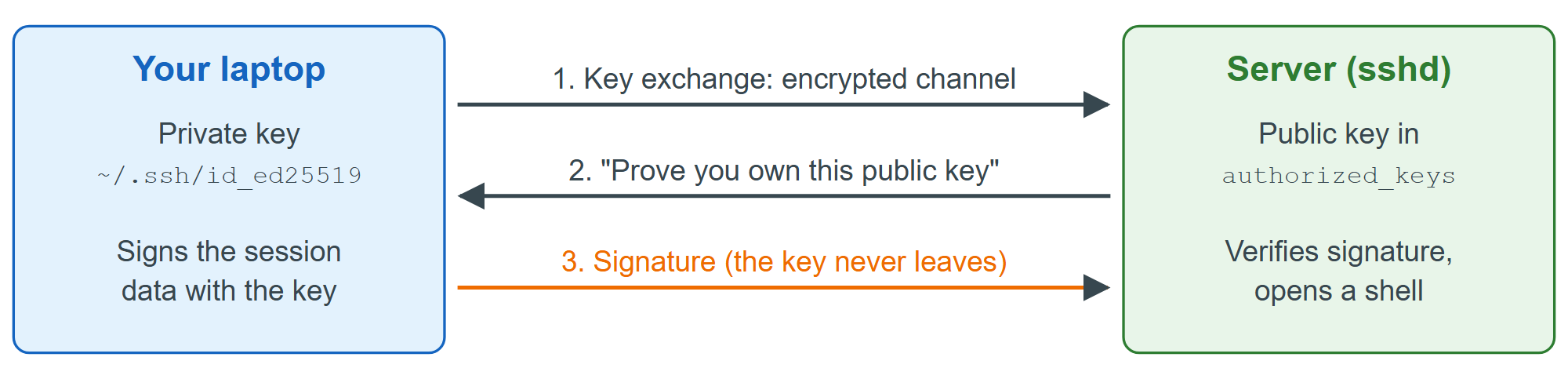
Once key login works, turn off password logins and open only the ports you serve. Keep your current session open while you test in a second terminal, because a mistake here can lock you out.
printf 'PasswordAuthentication no\nPermitRootLogin no\n' |
  sudo tee /etc/ssh/sshd_config.d/00-hardening.conf
sudo sshd -t && sudo systemctl restart ssh    # -t validates the configuration first
sudo ufw limit OpenSSH                        # allow SSH, but throttle repeated attempts
sudo ufw allow 80,443/tcp                     # HTTP and HTTPS
sudo ufw enableRemote Desktop
To control a Windows machine, use the built-in Remote Desktop Connection (mstsc) on Windows, Windows App on macOS and iOS, or the open-source Remmina 166,363 (https://remmina.org/ 166,363 ) on Linux. The machine you connect to must run a Pro or higher edition of Windows (Home cannot host sessions); enable it in Settings > System > Remote Desktop. Do not forward port 3389 to the Internet, where it is scanned constantly; reach it over a VPN, or through an SSH tunnel to a machine running OpenSSH 23,707 Server: ssh -L 13389:localhost:3389 admin@office-pc, then connect RDP to localhost:13389.