The reading-notes screen combines the section: a truncated heading, a scrolling list of notes, and a composer pinned above the keyboard with a page field, a multiline note and an Add button disabled until the note is valid. State is local for now; Storage and Native Modules persists it.
type Note = { id: number; page: string; text: string };
const book = books[0];
const MAX = 280;
export default function ReadingNotes() {
  const [notes, setNotes] = useState<Note[]>([]);
  const [page, setPage] = useState('');
  const [text, setText] = useState('');
  const textRef = useRef<TextInput>(null);
  const scroller = useRef<ScrollView>(null);
  const valid = text.trim().length > 0 && (page === '' || Number(page) <= book.pages);
  const add = () => {
    setNotes([...notes, { id: Date.now(), page, text: text.trim() }]);
    setPage('');
    setText('');
    requestAnimationFrame(() => scroller.current?.scrollToEnd());
  };
  return (
    <Screen>
      <KeyboardAvoidingView style={{ flex: 1, gap: 8 }} behavior="padding">
        <ScrollView ref={scroller} contentContainerStyle={{ gap: 12 }}
          keyboardShouldPersistTaps="handled" keyboardDismissMode="on-drag">
          <Text style={ui.h1} role="heading" numberOfLines={1}>{book.title}</Text>
          <Text style={ui.label}>{book.author} · {notes.length} notes</Text>
          {notes.map((n) => (
            <Text key={n.id} style={ui.card} numberOfLines={4}>
              <Text style={ui.label}>{n.page ? `p. ${n.page}  ` : ''}</Text>{n.text}
            </Text>
          ))}
        </ScrollView>
        <View style={[ui.card, { gap: 8 }]}>
          <TextInput style={ui.input} value={page} placeholder={`Page (1-${book.pages})`}
            keyboardType="number-pad" maxLength={3} returnKeyType="next"
            submitBehavior="submit" onSubmitEditing={() => textRef.current?.focus()}
            onChangeText={(t) => setPage(t.replace(/\D/g, ''))} />
          <TextInput ref={textRef} style={[ui.input, { height: 88, textAlignVertical: 'top' }]}
            multiline maxLength={MAX} value={text} onChangeText={setText}
            placeholder="What stayed with you?" aria-label="Note text" />
          <Pressable style={[ui.button, !valid && { opacity: 0.4 }]} onPress={add}
            role="button" disabled={!valid}>
            <Text style={ui.buttonText}>Add note ({MAX - text.length} left)</Text>
          </Pressable>
        </View>
      </KeyboardAvoidingView>
    </Screen>
  );
}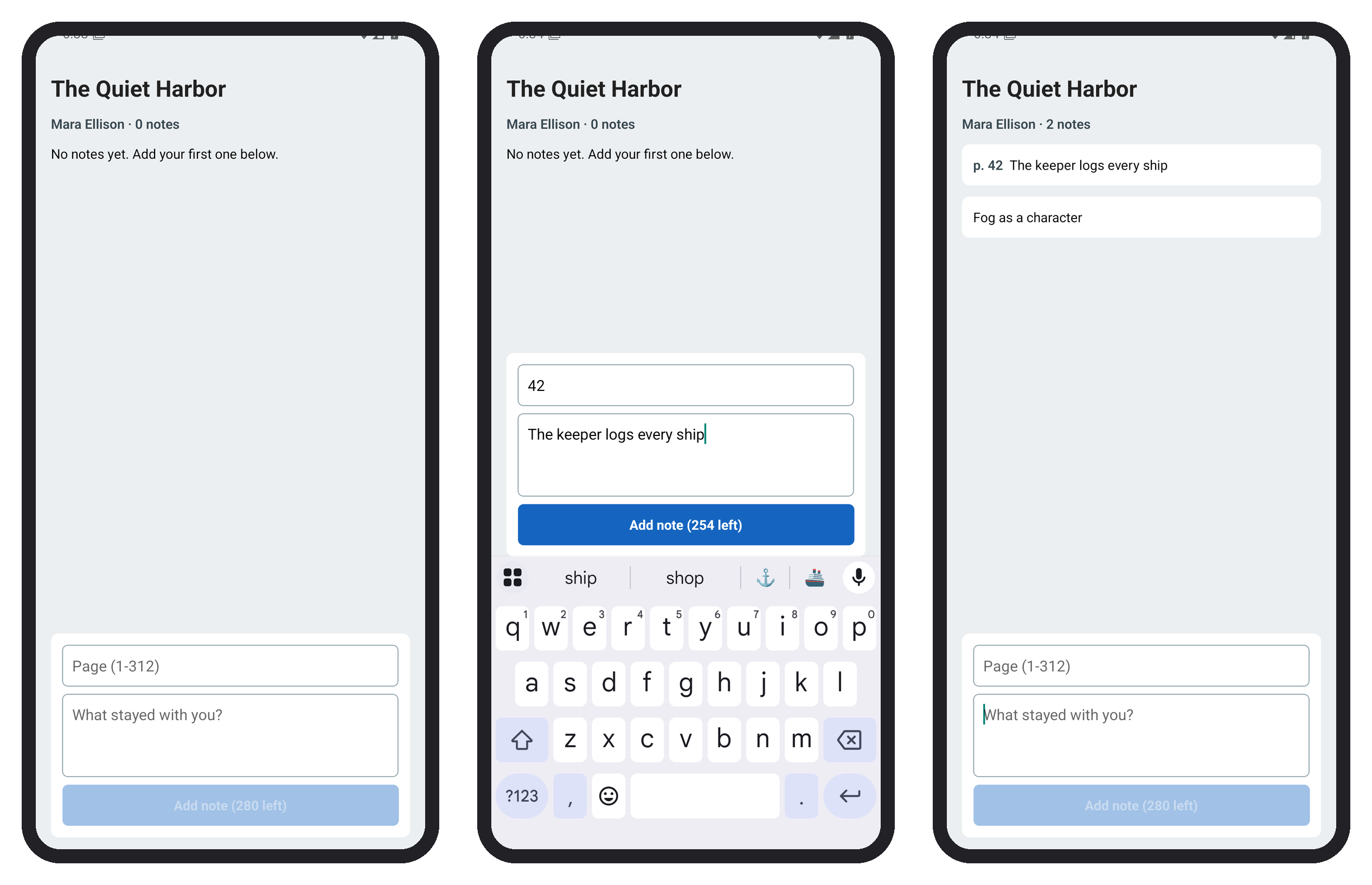
The composer sits outside the ScrollView, inside the KeyboardAvoidingView, so it rides on the keyboard while the notes scroll behind it. keyboardShouldPersistTaps="handled" keeps taps working while the keyboard is open. The page field hands focus to the note with submitBehavior="submit", requestAnimationFrame waits a frame for the new note's layout before scrollToEnd(), and disabled tells screen readers what the opacity tells sighted users. With hundreds of notes, use a FlatList (Lists).